Discover how to upgrade your PC for gaming effectively in 2026. This comprehensive guide helps busy gamers balance life and passion, providing practical tips for performance boosts without breaking the bank. Learn about key components like GPUs, CPUs, RAM, and SSDs, and understand when to upgrade for maximum impact. We address common pain points such as setup issues, frame rate drops, and budget constraints, ensuring you get the best value for your hard-earned money. Optimize your gaming experience, improve visuals, and achieve smoother gameplay. Find out which upgrades offer the most significant improvements for popular titles and social gaming. This resource is tailored for the average US gamer aged around 36 who values relaxation, fun, and skill-building alongside family and career commitments. Get ready to transform your gaming rig into a powerhouse.
Q: What are the key components to consider when I want to upgrade my PC for gaming?
A: When looking to upgrade your PC for gaming, focus primarily on four main components: the Graphics Processing Unit (GPU), Random Access Memory (RAM), Solid State Drive (SSD), and potentially the Central Processing Unit (CPU). The GPU handles graphics rendering, RAM stores active game data, an SSD speeds up loading times, and the CPU processes game logic. Prioritizing these based on your current PC's weakest link will yield the best performance gains.
Q: How do I identify which component is the bottleneck in my current gaming PC?
A: To find your PC's bottleneck, use monitoring software like MSI Afterburner or HWMonitor while gaming. Observe the usage percentages of your GPU and CPU. If your GPU consistently hits 95-100% usage while your CPU is lower, your GPU is likely the bottleneck. Conversely, if your CPU is at 95-100% while your GPU is lower, the CPU is the limiting factor. Low RAM can cause stuttering and high disk usage can indicate a slow HDD bottlenecking loading times.
Q: Is it worth upgrading to an SSD for gaming if I already have a large HDD?
A: Absolutely. Upgrading from a Hard Disk Drive (HDD) to a Solid State Drive (SSD) is one of the most impactful upgrades for gaming, even if your HDD is large. SSDs drastically reduce game loading screens, boot times, and overall system responsiveness. An NVMe SSD offers even faster speeds, making it a highly recommended upgrade for your operating system and most-played games, directly addressing common gamer frustrations with slow loading.
Q: What's a good amount of RAM for a gaming PC in 2026, and does RAM speed matter?
A: For gaming in 2026, 16GB of RAM is the minimum recommended to handle most modern titles smoothly. However, 32GB is increasingly becoming the sweet spot for demanding games, future-proofing, and multitasking like streaming or having many browser tabs open. Yes, RAM speed (measured in MHz, e.g., 3600MHz) and lower latency (CL) definitely matter, as faster RAM can improve CPU performance and overall system responsiveness, leading to better minimum frame rates.
Q: When should I consider replacing my entire motherboard and CPU instead of just parts?
A: You should consider replacing your entire motherboard and CPU when your current CPU is significantly outdated and bottlenecks even a new GPU, or if your motherboard lacks support for essential modern features like faster RAM (DDR5) or PCIe 4.0/5.0 for next-gen GPUs and NVMe SSDs. This is often a more complex and expensive upgrade, typically undertaken when you're looking for a substantial platform refresh rather than just a component swap.
Q: How can I ensure compatibility when buying new components for my PC upgrade?
A: Ensuring compatibility is critical. For a CPU, check your motherboard's socket type (e.g., AM5, LGA 1700). For RAM, verify the type (DDR4 or DDR5) and maximum speed your motherboard supports. For a GPU, confirm your power supply has enough wattage and the necessary PCIe power connectors, and ensure your PC case has adequate physical space. Websites like PCPartPicker.com are excellent tools for automatically checking component compatibility.
Q: What are some cost-effective ways to upgrade my PC for gaming on a tight budget?
A: On a tight budget, focus on upgrades with the highest performance-per-dollar impact. First, add an SSD if you don't have one. Next, ensure you have at least 16GB of RAM. Then, consider a mid-range GPU from a recent generation, often found at good value during sales or on the used market. Optimizing software settings and keeping drivers updated are free ways to boost performance. Prioritize upgrades that directly address your biggest pain points, like slow load times or low frame rates in your favorite games.
Ever feel like your gaming PC is just not keeping up anymore? You queue up for a new title or jump into a Discord call with friends, only to be met with stuttering frames, slow loading times, or graphics settings stuck on 'low'. For many US gamers, balancing a job, family, and life means gaming is a cherished escape, a way to relax, connect, and build skills. You want smooth performance, crisp visuals, and a reliable rig without spending every free moment troubleshooting or breaking your budget. The good news is, you don't always need a whole new system to get that next-level experience. Upgrading your existing PC for gaming can be a smart, cost-effective path to better performance and more enjoyable play.
As of this month in 2026, gaming continues its strong run, with approximately 87% of US gamers regularly logging over 10 hours a week across various platforms. While mobile gaming dominates in sheer numbers, PC gaming remains the go-to for many who seek immersive experiences, competitive play, and the flexibility to customize. But hardware evolves rapidly, and what was cutting-edge last year might be struggling today. This guide is designed for you: the busy adult gamer who wants to know exactly how can I upgrade my PC for gaming, what parts offer the best bang for your buck, and how to make those changes without stress. Let's dive in and unlock your PC's full potential.
How Do I Assess My Current PC's Performance for Gaming?
Before you spend a dime, understanding your PC's current limitations is crucial. Think of it like a gaming diagnostic. Start by monitoring your in-game performance. Tools like MSI Afterburner or GeForce Experience (for NVIDIA users) and Radeon Software (for AMD users) can display frame rates, GPU usage, CPU usage, and temperatures in real-time. Pay attention to how these metrics behave during demanding moments in your favorite games. Are frames consistently low? Is your GPU hitting 100% usage while your CPU idles? Or vice-versa? Look at game settings; if you're stuck on low or medium even in older titles, that's a clear indicator.
Another key step is checking your system specifications. You can find this in Windows by typing 'dxdiag' into the Run dialog or checking 'About your PC' in Settings. Note down your processor (CPU), graphics card (GPU), amount of RAM, and storage type (HDD or SSD). Knowing these specs will help you identify bottlenecks and prioritize upgrades effectively. For example, if you have an older HDD, upgrading to an SSD is almost always a universally beneficial first step for overall system responsiveness, including game load times.
What Are the Most Impactful PC Upgrades for Gaming Performance?
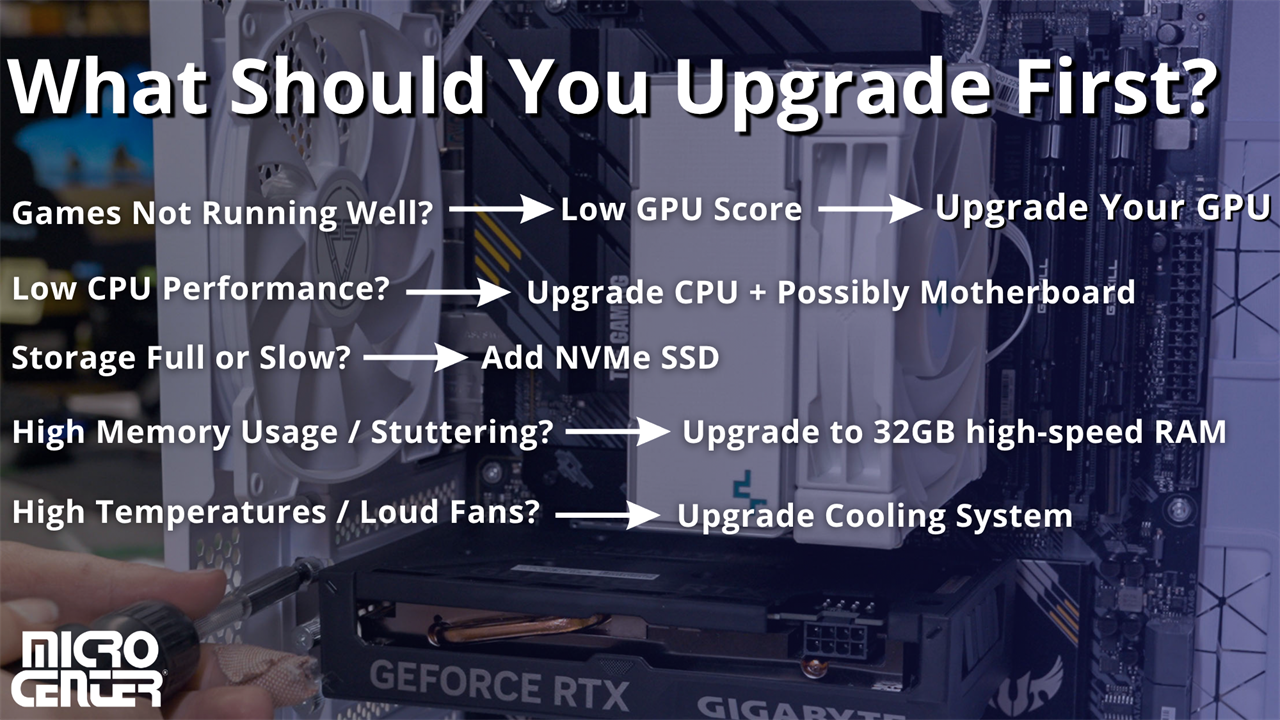
When it comes to boosting gaming performance, certain components offer a greater return on investment. Prioritizing these can transform your experience without requiring a complete system overhaul. The three big hitters are the Graphics Processing Unit (GPU), Random Access Memory (RAM), and Solid State Drive (SSD).
- Graphics Processing Unit (GPU): This is often the single most important upgrade for gaming. A better GPU directly translates to higher frame rates, improved visual quality, and the ability to play newer, more demanding games at higher resolutions. Keep an eye on recent releases and current market trends for value.
- Random Access Memory (RAM): While not as impactful as a GPU for raw frame rates, insufficient RAM (e.g., 8GB in 2026) can cause stuttering and slow loading, especially with many applications running in the background or in memory-hungry games. Upgrading to 16GB or even 32GB (for future-proofing and intensive multitasking/streaming) can provide a noticeable smoothness boost. Look for faster RAM (higher MHz) compatible with your motherboard.
- Solid State Drive (SSD): If you're still booting Windows or running games from a traditional Hard Disk Drive (HDD), an SSD is a game-changer. It dramatically reduces load times for games, applications, and your operating system. An NVMe SSD is even faster than a SATA SSD, offering incredible speed for your main drive where Windows and your most played games reside.
While the CPU is vital, it typically bottlenecks less often than the GPU for pure gaming performance, unless it's very old or low-end. However, if you notice your CPU consistently hitting 100% while your GPU idles, a CPU upgrade might be necessary, often requiring a new motherboard and RAM as well.
How Do I Choose the Right Graphics Card (GPU) for My Budget?
Choosing a GPU can feel overwhelming with so many options. The key is to balance your budget with your desired performance and monitor resolution. First, set a realistic budget. GPU prices vary wildly, but mid-range cards often offer the best performance-per-dollar for the average gamer. Research current market offerings from NVIDIA (GeForce RTX series) and AMD (Radeon RX series). Look at benchmarks for the specific games you play most frequently. Websites like TechPowerUp or Gamers Nexus provide in-depth reviews and comparisons.
Consider your monitor's resolution and refresh rate. A 1080p monitor doesn't need as powerful a GPU as a 1440p or 4K display. If you have a high refresh rate monitor (e.g., 144Hz), a more powerful GPU will help you actually achieve those higher frame rates. Also, check your power supply unit (PSU) wattage. Newer, more powerful GPUs require more power, so ensure your PSU can handle the load. A general rule is to aim for a GPU that is powerful enough for your current needs but also offers a little headroom for future titles, without overspending on something that your CPU or monitor can't fully utilize.
When Should I Consider Upgrading My Processor (CPU) and Motherboard?
Upgrading your CPU and motherboard is generally a more involved and expensive process, often necessary when your existing CPU is significantly bottlenecking your GPU or if you want access to newer technologies. You might need a CPU upgrade if:
- Your CPU utilization is consistently at or near 100% in games, while your GPU usage is much lower.
- You're experiencing significant frame rate drops in CPU-intensive games (strategy games, open-world titles, or games with many NPCs).
- You want to do more than just game, such as streaming, video editing, or heavy multitasking, and your current CPU struggles.
- Your current motherboard doesn't support newer, faster RAM or PCIe generations (like PCIe 4.0 or 5.0 for modern GPUs and NVMe SSDs).
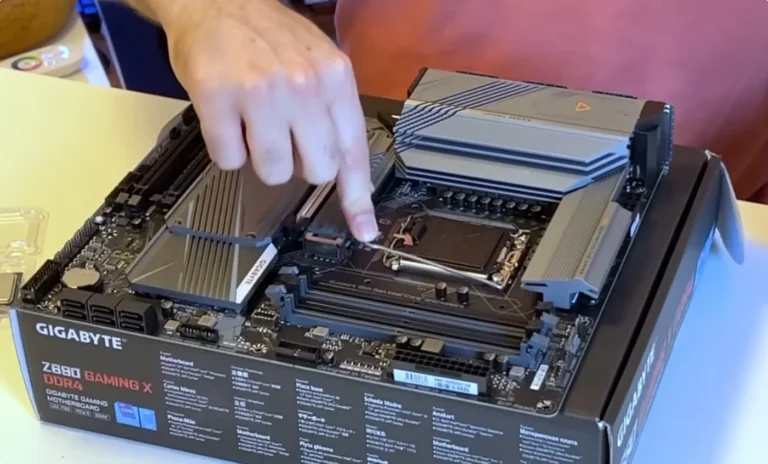
Keep in mind that CPU upgrades often require a new motherboard because CPU sockets change between generations (e.g., Intel's LGA 1700 vs. AMD's AM5). If you replace the motherboard, you'll also likely need new RAM that's compatible with the new board and CPU (e.g., DDR5 RAM). This makes it a more comprehensive and costly upgrade, so assess if it's truly necessary or if a GPU/RAM/SSD upgrade would provide more immediate benefit.
Are Budget PC Upgrades Actually Worth It, and What's a Good Approach?
Absolutely, budget PC upgrades can be incredibly worthwhile, especially for gamers who balance life and gaming. The key is strategic spending. Instead of aiming for the absolute top-tier components, focus on upgrades that address your specific pain points and offer the best performance-per-dollar. For example, if you're still on an HDD, an inexpensive 1TB SATA SSD will drastically improve your system's responsiveness and game load times for around $50-$80, which is fantastic value. Upgrading from 8GB to 16GB of RAM is another relatively affordable boost that smooths out many gaming experiences.
A good approach involves:
- Identify Your Bottleneck: Use monitoring software to pinpoint what's holding you back (CPU, GPU, RAM, storage).
- Prioritize: Typically, GPU is first, then RAM or SSD. CPU/Motherboard/RAM combo is last, as it's the most expensive.
- Research Deals: Keep an eye out for sales, especially during major shopping events. Used components (from reputable sellers) can also offer great value.
- Set a Realistic Budget: Stick to it. Small, incremental upgrades over time can be more manageable than one huge expense.
- Consider Used Parts: A slightly older generation GPU can offer huge performance gains over integrated graphics or a very old card, often at a fraction of the price of new.
Even modest upgrades can breathe new life into an aging rig, allowing you to enjoy popular social games, co-op titles, and new releases without constant frustration. Remember, value for money is paramount for the average gamer.
How Can I Ensure Compatibility When Upgrading My PC?
Compatibility is paramount to a successful PC upgrade. A component that doesn't fit or isn't recognized by your system is just an expensive paperweight. Here’s a checklist:
- Motherboard Socket: Crucial for CPU upgrades. An Intel i7-12700K needs an LGA 1700 socket motherboard; an AMD Ryzen 7 7800X3D needs an AM5 socket.
- RAM Type & Speed: Motherboards support specific RAM types (DDR4 or DDR5) and often have a maximum speed they can handle. Check your motherboard's manual or manufacturer's website.
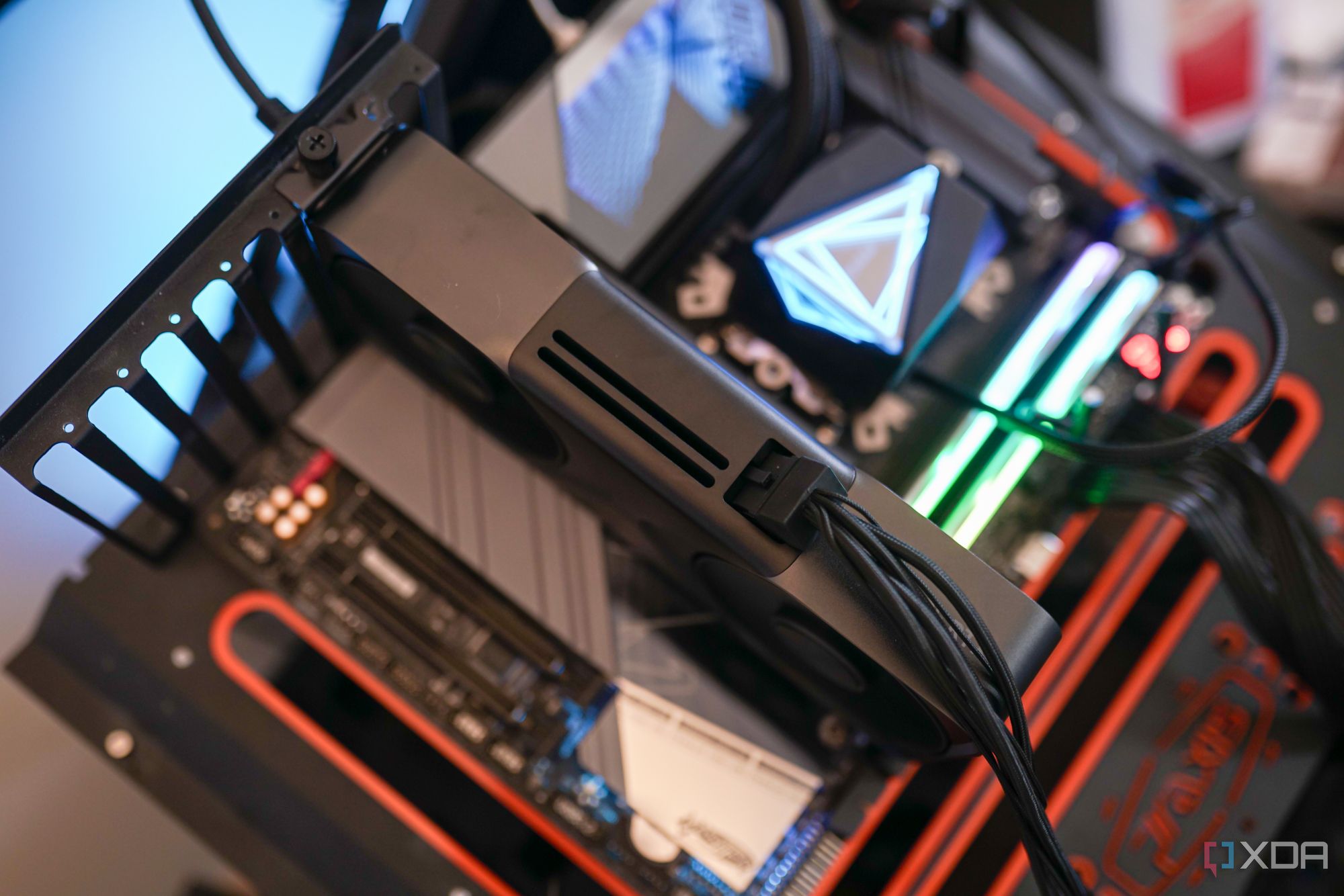
- GPU Slot: Modern GPUs use a PCIe x16 slot. Almost all motherboards have this, but ensure your case has enough physical space for the card and your PSU has the necessary PCIe power connectors.
- Power Supply Unit (PSU): Your PSU needs enough wattage to power all your components, especially a new GPU. Check the GPU manufacturer's recommended PSU wattage and ensure your PSU has the correct connectors (e.g., 6-pin, 8-pin, 12VHPWR).
- Case Size: Will the new component physically fit? This is particularly important for large GPUs or CPU coolers. Measure twice, buy once!
- Operating System: Ensure your OS (Windows 10/11) is up to date, as new hardware often requires the latest drivers and OS support.
Websites like PCPartPicker.com are excellent resources for checking component compatibility before you buy. They automatically flag potential issues, saving you headaches.
What Software Optimizations Can Improve Gaming Performance Without Hardware Upgrades?
Not every performance boost requires opening your PC case. Several software tweaks can significantly improve your gaming experience, especially if your hardware is just barely meeting minimum requirements or if you want to squeeze every last frame out of your existing setup. These are often free and quick to implement:
- Update Drivers: Always keep your GPU drivers (NVIDIA GeForce Experience, AMD Radeon Software), chipset drivers, and sound drivers up to date. Manufacturers constantly release performance optimizations.
- Close Background Apps: Before launching a game, close unnecessary programs, browser tabs, and background processes. Use Task Manager (Ctrl+Shift+Esc) to identify resource hogs.
- Adjust In-Game Settings: Experiment with lower graphics settings. Reducing resolution, shadow quality, anti-aliasing, and texture detail can lead to substantial frame rate gains without always ruining the experience.
- Windows Game Mode: Ensure Windows Game Mode is enabled (Settings > Gaming > Game Mode). It prioritizes system resources for games.
- Disk Cleanup & Defragmentation (for HDDs): Regularly clean up temporary files. If you still have an HDD, defragmenting it can help, though it's unnecessary for SSDs.
- Overclocking (Advanced): If you're comfortable, gently overclocking your GPU or CPU (with proper cooling) can yield extra performance. Be cautious and research thoroughly.
- Monitor Refresh Rate: Ensure your monitor's refresh rate is set correctly in Windows display settings to match its maximum capability (e.g., 144Hz, 240Hz).
These optimizations are often overlooked but can make a noticeable difference, helping you enjoy games more fluidly. They are perfect for the gamer who needs quick wins without investing time or money.
How Do I Balance Gaming Upgrades with My Budget and Life Commitments?
This is a common challenge for the average gamer around age 36, who is often balancing work, family, and other responsibilities. The trick is smart planning and realistic expectations. First, establish a dedicated budget for gaming upgrades, treating it like any other discretionary expense. Instead of a massive overhaul, consider incremental upgrades. Perhaps this year it's a new GPU, next year an SSD, and the year after, more RAM. This spreads out the cost and allows you to enjoy performance boosts sooner.
Think about your gaming habits. Do you primarily play cozy games with friends, or are you chasing competitive esports titles? Your upgrade needs will differ. Focus on components that directly impact your favorite genres. For social gaming or lighter titles, an SSD and 16GB RAM might be sufficient, allowing you to save for a more impactful GPU later. Leverage sales events like Black Friday or Prime Day for better deals. Don't feel pressured by the latest hype; evaluate what genuinely improves *your* specific gaming experience and fits *your* lifestyle. Remember, gaming is about enjoyment and relaxation, not constant component chasing.
Upgrading your PC for gaming doesn't have to be a daunting task. By understanding your current system, prioritizing smart component choices, ensuring compatibility, and leveraging both hardware and software optimizations, you can significantly enhance your gaming experience. Whether it's smoother frame rates for the latest titles or quicker load times for your favorite social games, a well-planned upgrade can breathe new life into your machine and make your gaming sessions more enjoyable. Remember, it's about getting the best value and performance that fits your life and budget. What's your biggest gaming challenge? Comment below!
FAQ Section
Q: What's the best first upgrade for an old gaming PC?
A: For most older gaming PCs, upgrading to a Solid State Drive (SSD) is the single most impactful first step. It dramatically improves overall system responsiveness and game loading times, making everything feel much faster, often for a relatively low cost.
Q: How much RAM do I really need for gaming in 2026?
A: In 2026, 16GB of RAM is generally the sweet spot for modern gaming, offering smooth performance in most titles. If you multitask heavily, stream, or play very memory-intensive games, 32GB can provide extra headroom and future-proofing.
Q: Is it better to upgrade my GPU or my CPU first?
A: For pure gaming performance, upgrading your Graphics Processing Unit (GPU) typically provides the most significant frame rate boost. A CPU upgrade is usually only necessary if your current processor is clearly bottlenecking your GPU or if you're experiencing severe stuttering in CPU-intensive games.
Q: Can I upgrade a laptop for gaming?
A: Laptop upgrades are far more limited than desktop upgrades. Typically, you can only upgrade the RAM and storage (HDD to SSD) on most gaming laptops. The CPU and GPU are usually soldered to the motherboard and cannot be replaced.
Q: How often should I upgrade my gaming PC?
A: There's no fixed schedule, but most gamers find a significant upgrade every 2-4 years makes sense for core components like the GPU. Smaller upgrades like RAM or SSDs might happen more opportunistically as needs arise or prices drop. It depends on your budget, desired performance, and the demands of new games.
Q: What are the current gaming trends to consider for upgrades?
A: Current trends in 2026 include continued growth in social and cooperative gaming, free-to-play titles, cross-play capabilities, and increasing demands for ray tracing and higher resolutions. Upgrades should consider components that excel in these areas, like GPUs with strong ray tracing performance and ample VRAM, and fast storage for quick loading of large game worlds.
Budget friendly upgrades, performance optimization, GPU CPU RAM SSD importance, balancing gaming with life, common pain point solutions, value for money, current gaming trends, US gamer focus, hassle free setup.
35

Best Gaming PC Builds For 2026 Best Gaming PC Builds For 2026.webp. Top Tips For Upgrading Your Gaming PC In 2026 Currys Tech Talk 2025 Pc Upgrade Hero. An OLED Monitor Might Be The Best Upgrade You Can Make To Your PC . The Ultimate Gaming PC Build 2026 Guide By Xidax 1 Unnamed . How To Upgrade Your Gaming PC Images Thumbnail Graphic How To Upgrade Your PC


The Gaming PC You Need To Build For 2026. Desktop PC Upgrade Guide 2026 Maximize Performance Save Money . The Best 1000 Gaming PC Build For 2026 YouTube . The ULTIMATE AMD Gaming PC Build 2026 YouTube . How To Upgrade Your Gaming PC How To Upgrade Your Gaming PC.webp


Building An Affordable Gaming PC For 2026 GeekaWhat FI DP056 Antec Flux M 9060XT 1024x576 . Best PC Builds For Gaming 2026 Ultimate Guide To Building Your Dream Best PC Builds For Gaming 2026 1024x683 . DIY Budget PC Upgrades For Improved Performance Gaming On A Budget 1024x1024 . Best Budget Gaming PC Builds For 2026 500 800 Best Budget Gaming PC Builds For 2026.webp. Your Ultimate PC Upgrade Guide How To Upgrade Your Gaming Pc A Step By Step Guide For Sa Gamers.webp


Desktop PC Upgrade Guide 2026 Maximize Performance Save Money 3 1 3 1024x576 . Best Cheap PC Upgrades For 2026 Make Your Old Gaming PC FAST Again . How To Upgrade Your Gaming PC Images 2 Graphic Showcasing What You Should Upgrade First . How To Upgrade Your Gaming PC To Improve Performance IBUYPOWER 16108ae2 Ff27 4870 Bb94 1 . What Are The Best Gaming PC Upgrades In 2026 Tai Bui Q XGz9NOVOE Unsplash 1024x683

How To Upgrade Your Gaming PC To Improve Performance IBUYPOWER 0eb769ce 82ec 4144 92f0 . 5 Easy Ways To Upgrade Your Gaming PC Tom S Guide 1200 80 . Best Gaming PC Build 2026 Top Picks For Every Budget PC Game Haven Gaming PC Build For 600 . 6 Easy Ways To Upgrade Your Gaming PC Upgrading Gaming Pc . Gaming PC Budget Guide 2026 Spend Smart Build Better Pc Builds For Every Budget


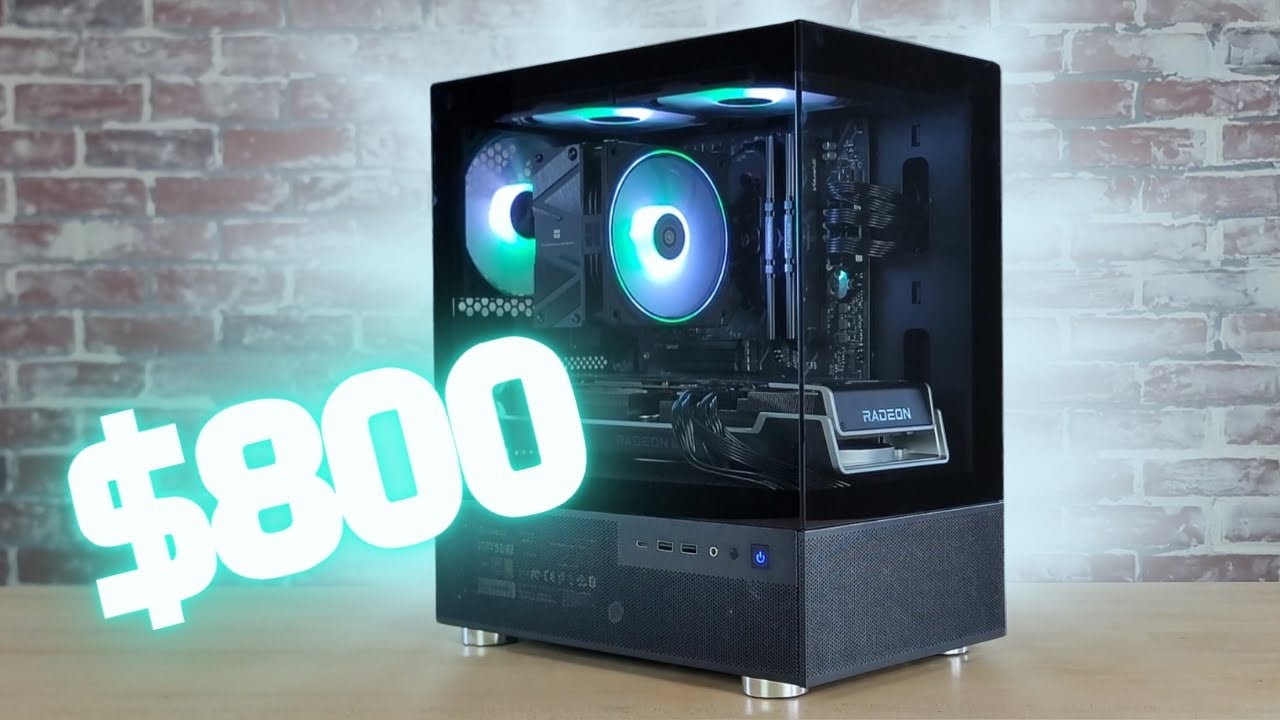
2026 CPU Upgrade Timing Cpu Upgrade Cycle 2026 How Long To Wait Banner V1.webp. How To Upgrade Your Prebuilt Gaming PC In 2025 A Step By Step Guide Spider Man 2 5 . Get Your PC 2026 Ready With These 9 Key Upgrades PCWorld Lohnende PC Upgrades 2025 Welches Upgrade Lohnt Sich Fur Wen 2 . I Upgraded My Old Pc To Ultimate Gaming Setup In 2026 YouTube . Best Budget Gaming PC Builds For 2026 500 800

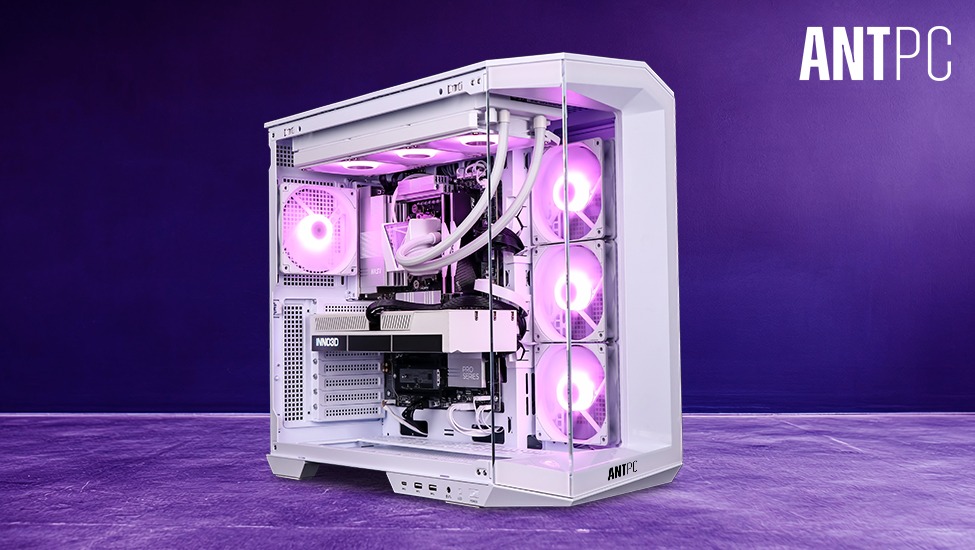


How To Upgrade Your Gaming PC To Improve Performance IBUYPOWER 5c5d051d 4e92 4e17 A1be . 12 AMD Gaming PC In 2026 Is It Any Good YouTube . How To Build A Future Proof Gaming PC In 2026 Complete Custom Build Guide 1773043345 . Guida All Upgrade Del PC Gaming 2026 Come E Cosa Migliorare PC Gaming It Pc Gaming Upgrade . How To Build A High End Gaming PC 2026 Complete Assembly Guide B0BQD58D96 Customer 1 2 768x1024