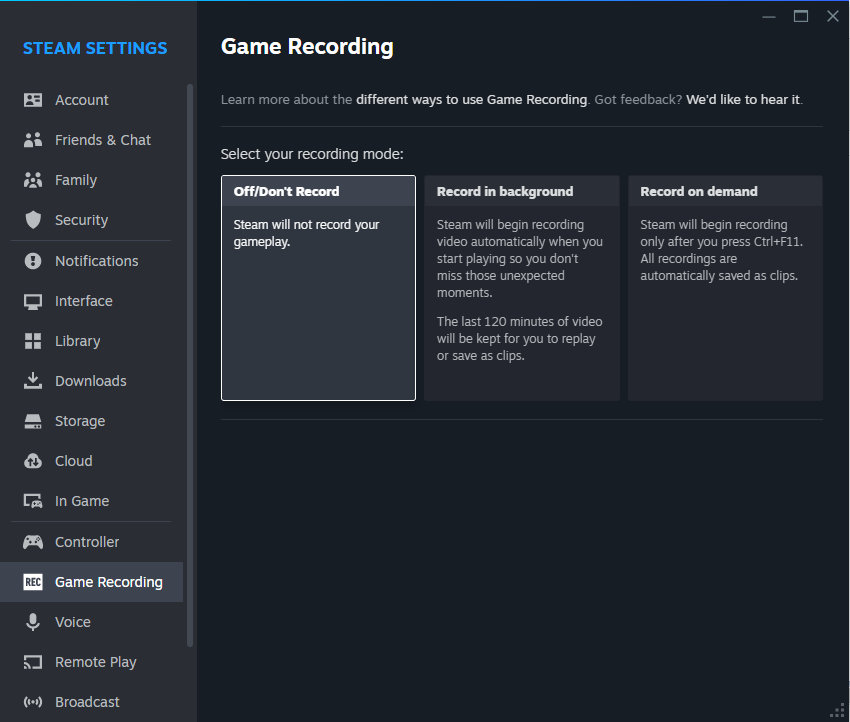
Want to capture those epic Steam gaming moments to share with friends or review your strategy Look no further This comprehensive guide explores various methods to record your Steam gameplay seamlessly whether youre using free built-in tools or professional software Discover how to optimize settings troubleshoot common issues and produce high-quality videos without impacting performance Perfect for the busy US gamer balancing life work and a passion for gaming we provide practical actionable advice to help you become a content creator or simply preserve your best plays Dive into easy to follow steps for OBS Studio NVIDIA ShadowPlay AMD ReLive and more ensuring you find the perfect solution for your setup and sharing needs Elevate your gaming experience by mastering game recording today
What is the easiest way to record Steam games for beginners?
For beginners, the easiest ways to record Steam games are using the built-in Xbox Game Bar on Windows (Win + G to open) or NVIDIA ShadowPlay/AMD ReLive if you have the respective graphics card. These tools are integrated into your system or GPU software, offering one-click recording with minimal setup and a low performance impact, perfect for capturing quick clips without complexity.
How can I record high-quality 1080p 60fps footage from my Steam games without lag?
To record high-quality 1080p 60fps footage without lag, utilize dedicated GPU encoders like NVIDIA's NVENC or AMD's AMF/VCE found in ShadowPlay, ReLive, or OBS Studio. Configure your recording software to use these hardware encoders. Additionally, choose an SSD for saving recordings, ensure your game runs smoothly above 60fps, and select a suitable bitrate (e.g., 20,000-30,000 Kbps for H.264) to balance quality and file size.
Are there any free recording software options specifically optimized for Steam games?
Yes, several free recording software options are optimized for Steam games. OBS Studio is a powerful, highly customizable choice for all systems. NVIDIA ShadowPlay (via GeForce Experience) and AMD ReLive (via Radeon Software) are excellent, low-impact options for users with respective GPUs. The built-in Windows Xbox Game Bar also offers a quick and easy solution directly integrated into your operating system for basic Steam game capture.
What are the best settings in OBS Studio for recording Steam gameplay on a mid-range PC?
For a mid-range PC using OBS Studio to record Steam gameplay, prioritize hardware encoding (NVENC for NVIDIA, AMF/VCE for AMD) in Output settings. Set the output mode to 'Advanced' and choose a CQP/CBR rate around 18-23 for CQP or 20,000-35,000 Kbps for CBR. Ensure your base and output resolutions match your game's resolution (e.g., 1080p) and set FPS to 60. Use 'Game Capture' as your source for optimal performance.
How do I troubleshoot common issues like a black screen or audio problems when recording Steam games?
A black screen often indicates a capture source issue. Try running the game in borderless windowed mode and using 'Window Capture' or ensure 'Game Capture' is set to capture a specific window. For audio, verify your desktop audio and microphone sources are correctly selected and not muted in the recording software's mixer. Check Windows sound settings and ensure OBS/recording software has appropriate permissions for microphone access.
Can I record Steam VR games and how does it differ from standard PC game recording?
Yes, you can record Steam VR games, though it often requires slightly different setup due to VR headsets acting as separate displays. OBS Studio is generally recommended; you might need to capture the VR 'mirror' display that appears on your desktop. Performance can be a greater concern as VR already demands significant GPU resources, so keep recording settings conservative and ensure your PC exceeds minimum VR requirements.
What's the best way to share my recorded Steam game clips to platforms like YouTube or Discord?
To share recorded Steam game clips, first ensure your video is in a widely accepted format like MP4. For YouTube, upload directly through their website, adding a compelling title, description, and relevant tags. For Discord, if the clip is short and under the file size limit (8MB for free users, 50MB for Nitro), you can upload it directly. For longer or larger clips, upload to YouTube or a cloud service and share the link on Discord.
Ever pulled off an incredible clutch in your favorite Steam game, only to wish you could replay it or show your friends? Or maybe you nailed that perfect headshot sequence, solved a tricky puzzle, or just want to capture those hilarious moments with your squad. For many US gamers, balancing work, family, and a passion for gaming means every precious minute in-game counts, and preserving those highlights is more important than ever. You're part of the 87% of US gamers who play regularly, often dedicating 10+ hours a week, looking for both relaxation and skill-building.
The good news is that recording your Steam games has never been easier or more accessible. You don't need fancy equipment or a complex studio setup to get started. Whether you're looking to share clips on Discord, upload to YouTube, or just keep a personal archive of your epic plays, this guide will walk you through everything you need to know about how to record Steam games effectively. We'll cover free, easy-to-use options, pro-level software, and essential tips to ensure your recordings look great without tanking your game's performance. Let's dive in and transform you from a gamer into a gaming archivist!
Why Should I Record My Steam Gameplay?
Recording your gameplay offers a multitude of benefits, extending far beyond simple bragging rights. For the busy gamer, it's a fantastic way to review strategies, improve skills, or even just relive a particularly fun session. It allows you to analyze your decision-making in competitive titles, helping you learn from mistakes and refine your tactics. Think of it as your personal training montage, without the extra gym time. For those interested in sharing, recorded footage is essential for creating content for social media, YouTube, or showcasing funny moments to your gaming circle.
Furthermore, capturing your gaming moments creates a digital scrapbook of your journey through the virtual worlds. With social gaming trends growing, sharing clips is an integral part of the online experience, fostering community and connection. From hilarious glitches to incredible feats, these recordings become cherished memories, allowing you to revisit them whenever you like. It's about preserving the fun, enhancing your skills, and connecting with others who share your passion.
What Are the Best Free Ways to Record Steam Games?
You don't need to spend a dime to start recording your Steam games in high quality. Several excellent free options are available that cater to different needs and system capabilities. These tools provide robust features without the price tag, making them perfect for budget-conscious gamers or those just starting out. Each has its strengths, so choosing the right one depends on your system and preferences.
- OBS Studio: Open Broadcaster Software (OBS) Studio is the gold standard for free recording and streaming. It's incredibly powerful, highly customizable, and supports a wide range of sources and settings. While it has a slight learning curve, the results are professional-grade.
- NVIDIA ShadowPlay (GeForce Experience): If you have an NVIDIA graphics card, ShadowPlay is built right into GeForce Experience. It's known for its incredibly low performance impact and a handy instant replay feature, allowing you to save the last few minutes of gameplay with a hotkey.
- AMD ReLive (Radeon Software): Similar to ShadowPlay, AMD ReLive is integrated into Radeon Software for AMD GPU users. It offers seamless recording with minimal performance overhead and also includes an instant replay option.
- Xbox Game Bar (Windows Built-in): Windows 10/11 includes the Xbox Game Bar, which has a basic but functional game recording feature. It's simple to use and great for quick clips, especially if you want a no-fuss solution.
These free options provide fantastic starting points for capturing your Steam adventures without any financial investment.
How Do I Record Steam Games with OBS Studio?
OBS Studio is a powerhouse for recording Steam games, offering flexibility and control over your footage. While it might seem intimidating at first, setting it up for basic game recording is straightforward.
- Download and Install OBS Studio: Visit the official OBS Studio website and download the appropriate version for your Windows operating system.
- Initial Setup Wizard: The first time you launch OBS, it will prompt you to run the Auto-Configuration Wizard. Choose
Effortless Steam game recording solutions Free and premium software options explained Optimal settings for high quality no lag capture Step by step guides for OBS ShadowPlay ReLive Troubleshooting common recording issues Tips for sharing your best gameplay moments
35#1 Gallery how to record steam games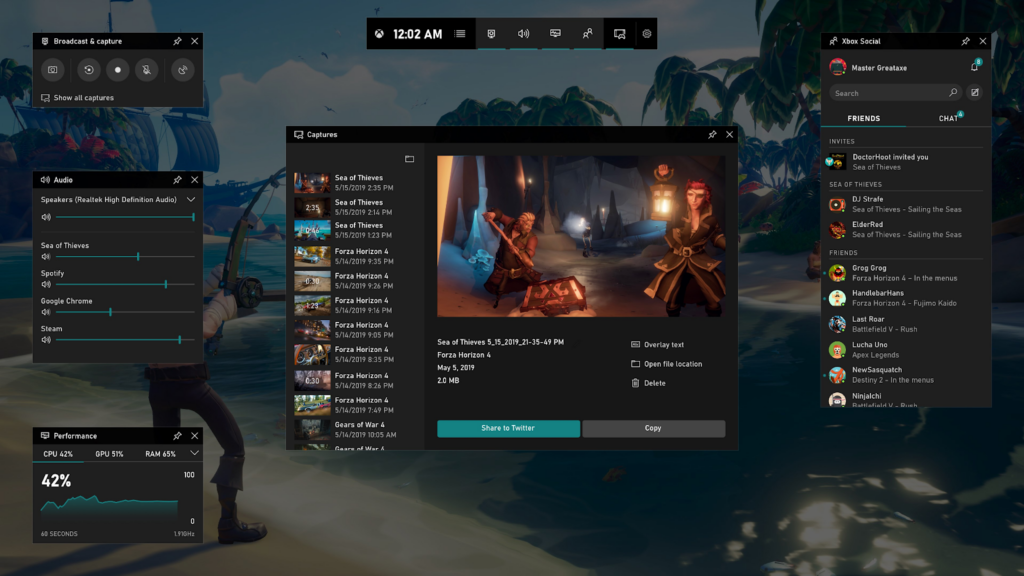
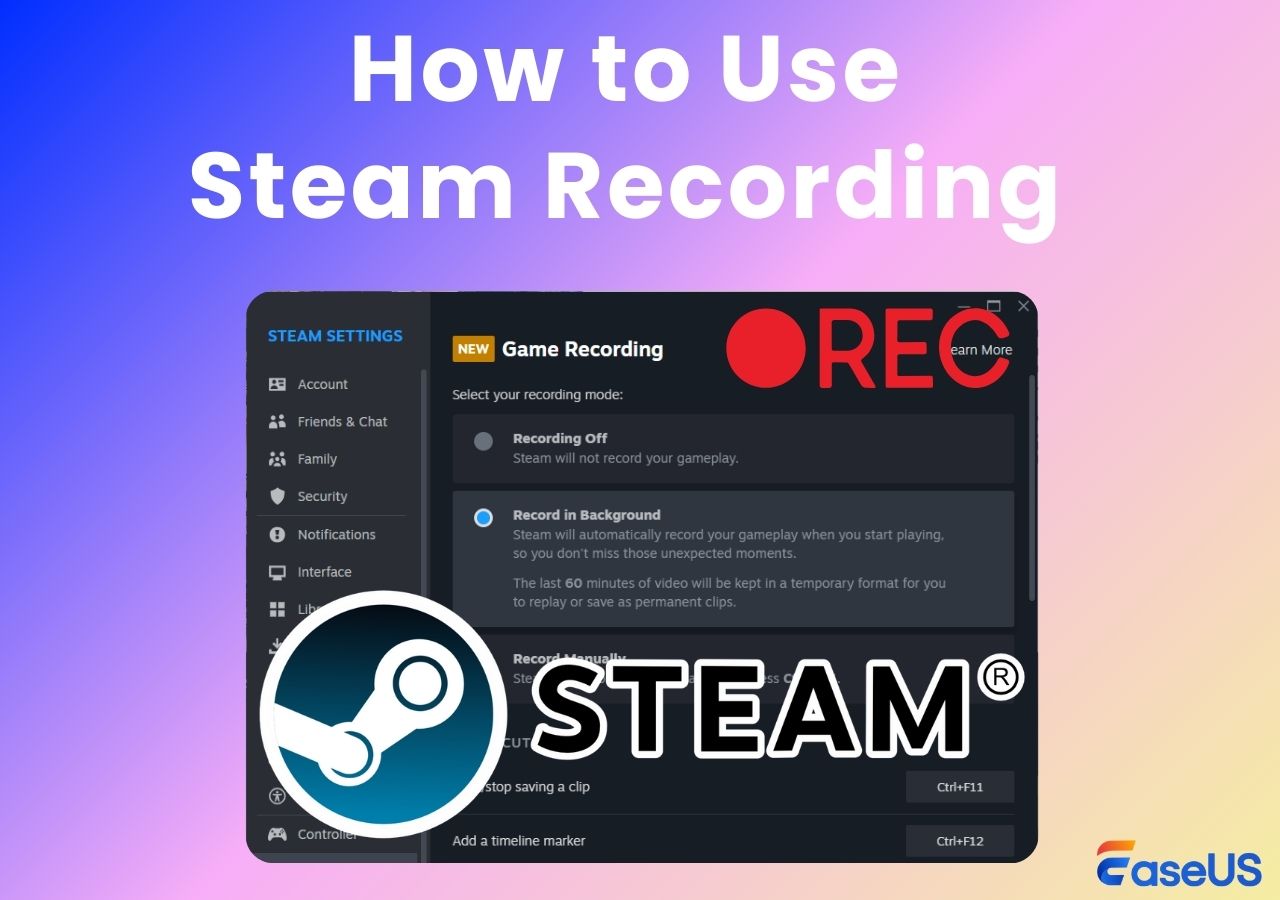

How To Record Your Steam Games In 2026 Image 1 1024x576 . How To Record On Steam 5 Workable Ways In 2024 Game Recording . 5 Steam Screen Recorder How To Record On Steam In 2026 EaseUS Record Steam Game Video . Steam Game Recording How To Record Screen On Steam Steam Recording . How To Record Your Steam Games In 2026 HOW TO RECORD YOUR STEAM GEMES
#2 Gallery how to record steam games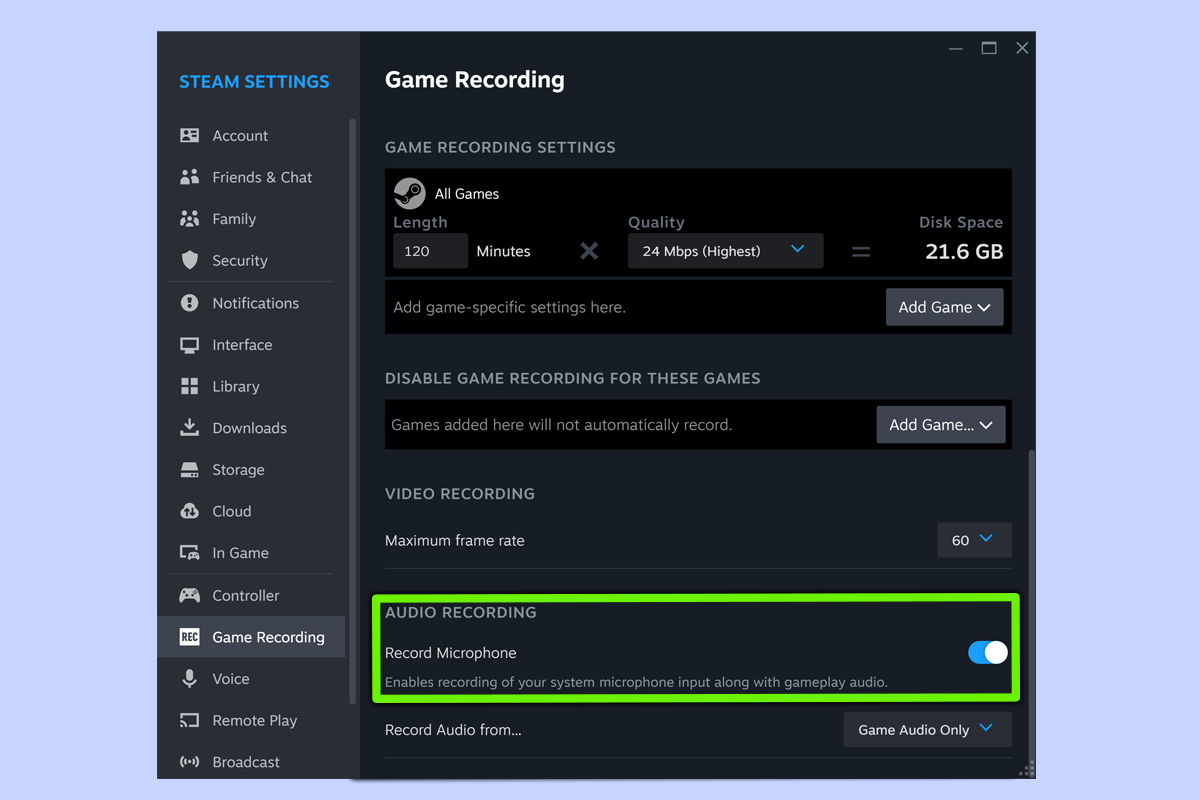
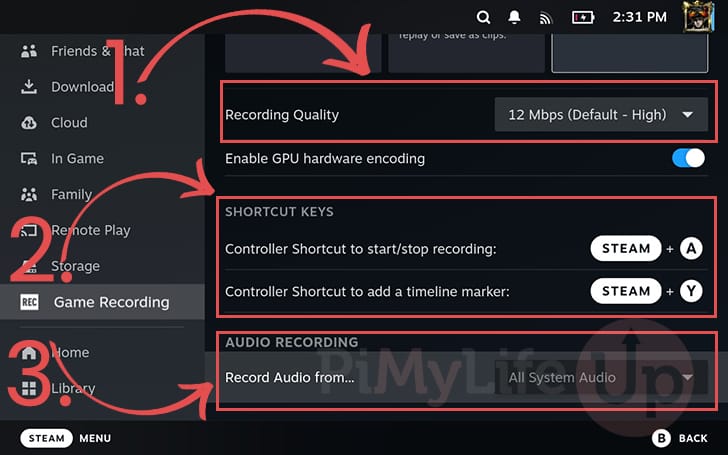

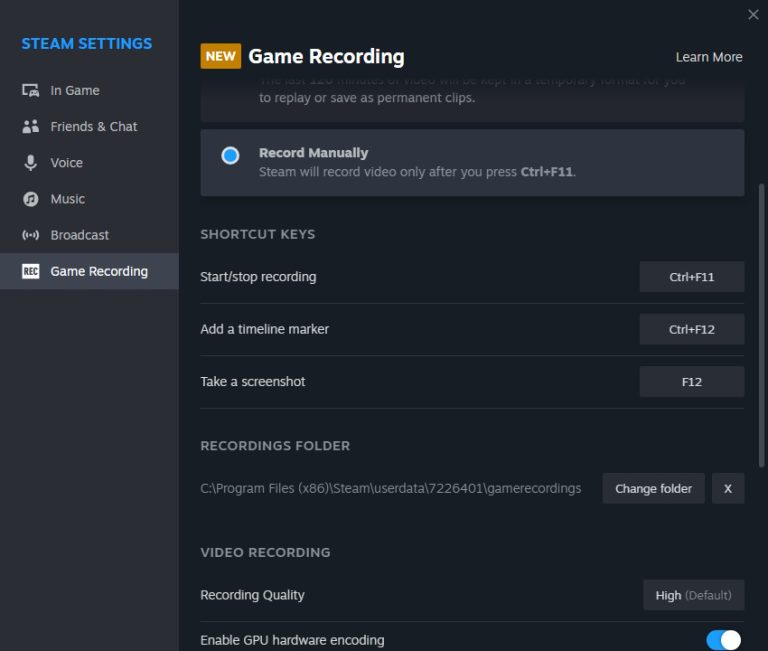
How To Record Steam Games Tom S Guide . How To Record Gameplay On The Steam Deck Pi My Life Up Steam Deck Game Recording 08 Configure On Demand Recording . How To Use Steam Game Recording Beebom Steam Game Recording Enable Options . Steam Community Guide How To Record Your Game Session Directly On. Valve S Steam Game Recording Is Now Live How To Use It And What To Expect Valve Steam Recording Screenshot 02 768x651
#3 Gallery how to record steam games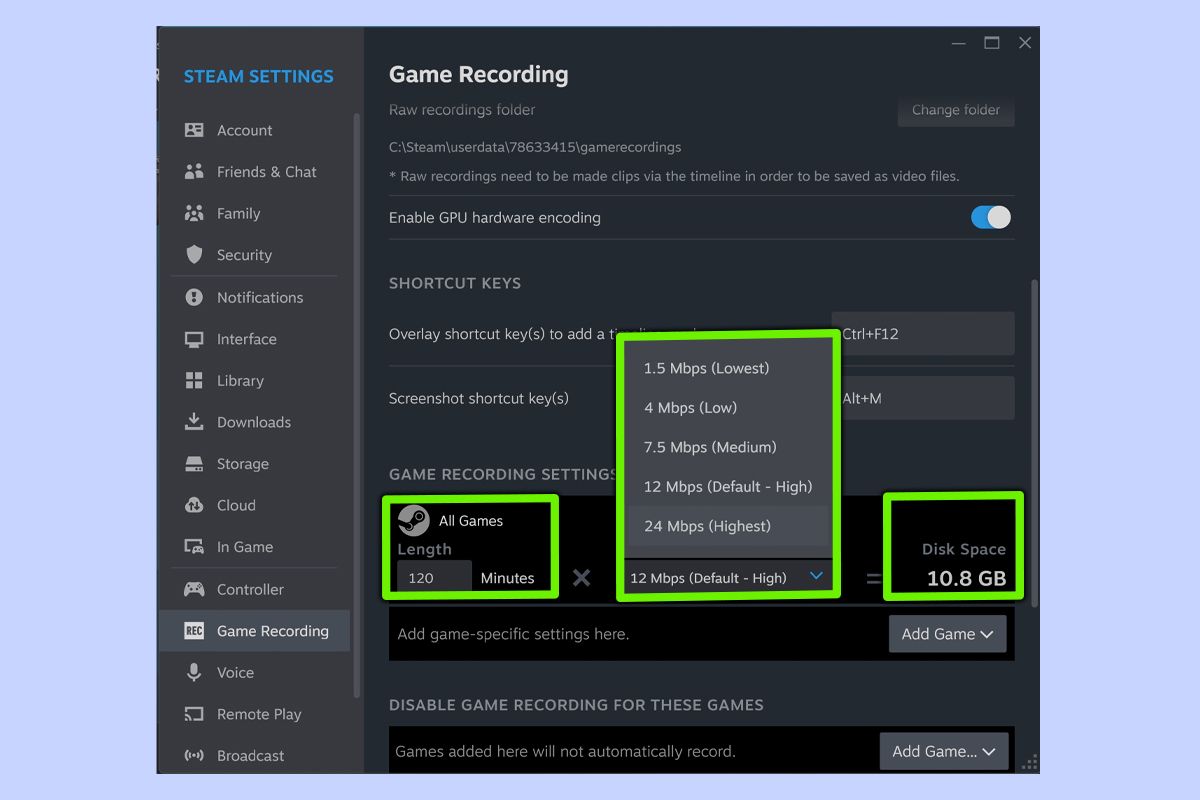
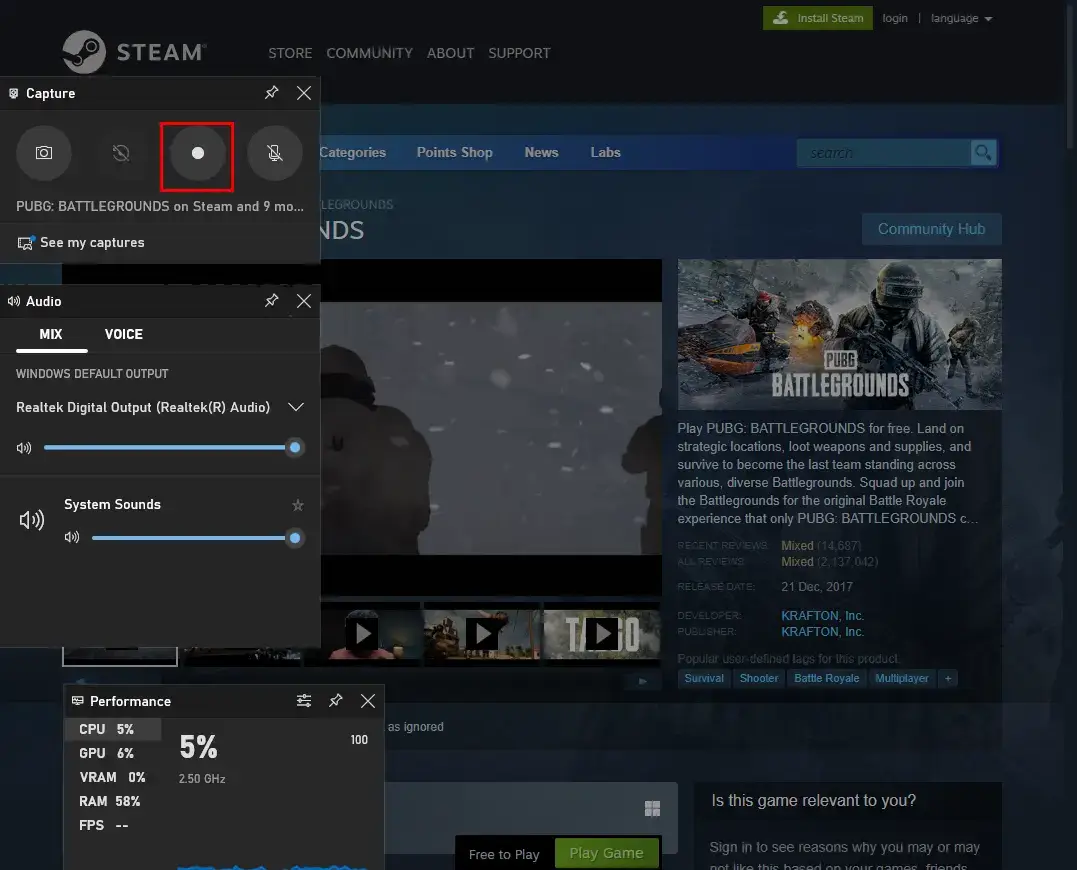


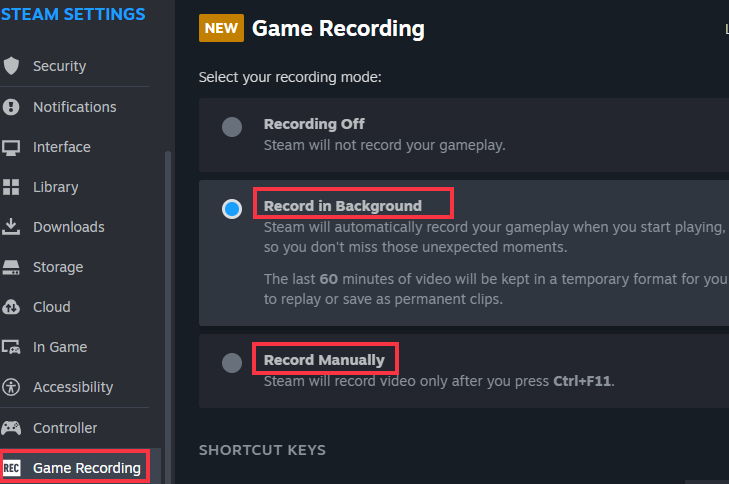
How To Record Steam Games Tom S Guide 1200 80 . How To Record Steam Games For FREE On Windows In 2024 WorkinTool How To Record Steam Games With Xbox Game Bar.webp. Steam Game Recording How To Activate And Use It In Game Guide YouTube . How To RECORD Games From Steam Full Basic Guide 4k YouTube . Steam Game Recording How To Record Screen On Steam Steam Recording Types
#4 Gallery how to record steam games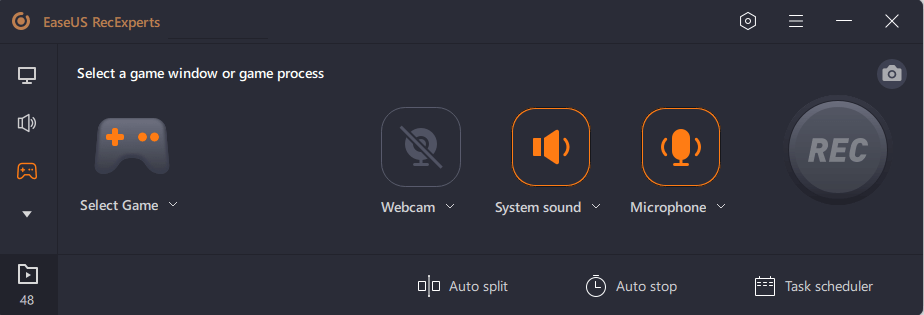
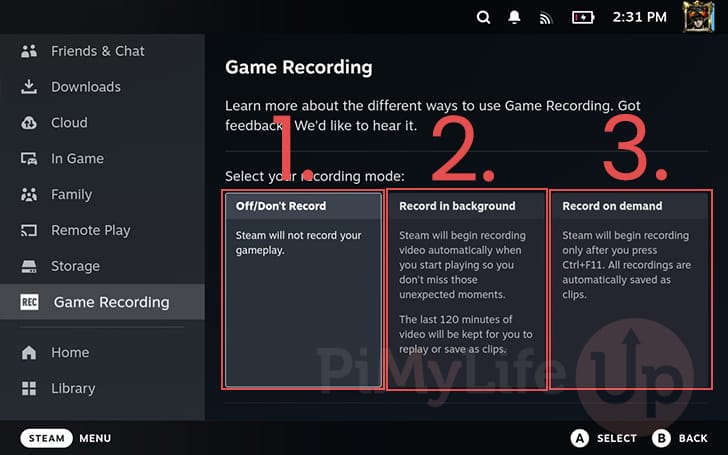


How To Record Your Steam Games In 2026 Image 6 . Steam Community Guide How To Record Your Game Session Directly On. How To Record Gameplay On The Steam Deck Pi My Life Up Steam Deck Game Recording 04 Select Screen Recording Mode . Steam Game Recording New Way To Record Gameplay On PC Tutorial . How To Setup STEAM GAME RECORDING On ANY PC To RECORD Gameplay Clips
#5 Gallery how to record steam games



How To Record Gameplay And Clip Game Footage In Steam Full Guide . How To Use Steam Game Recording A Step By Step Guide Image.axd. How To Use Game Recording On The Steam Deck All Features Explained . Record Game AmoyShare Record On Steam 480x180 1 . The Most Played Games On Steam For 2026 So Far Cheat Code Central Most Played Games Steam 2026 2048x1167
#6 Gallery how to record steam games
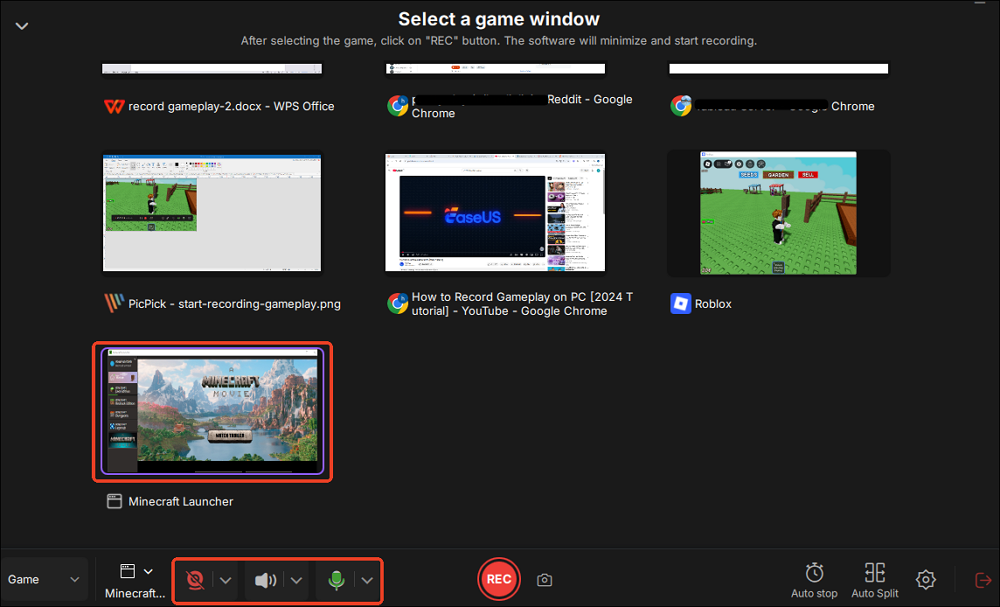


How To Record Games On Steam YouTube Oar2 . 5 Steam Screen Recorder How To Record On Steam In 2026 EaseUS Choose A Game Window Record . How To Use Steam Game Recording Shacknews How To Use Steam Game Recording Feature . How To Record Steam Games With OBS Alternative EaseUS How To Record Steam Games With Obs . How To Use Steam Game Recording 2026 Step By Step YouTube
#7 Gallery how to record steam games


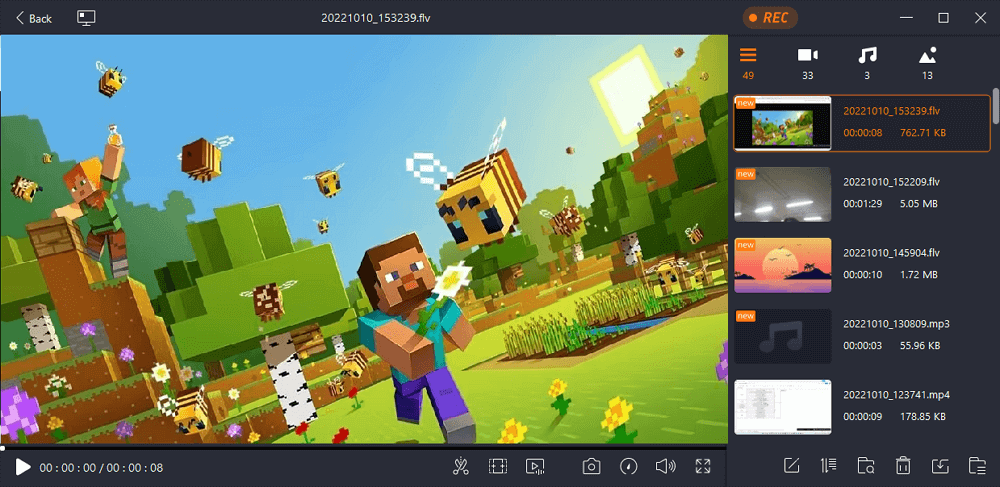
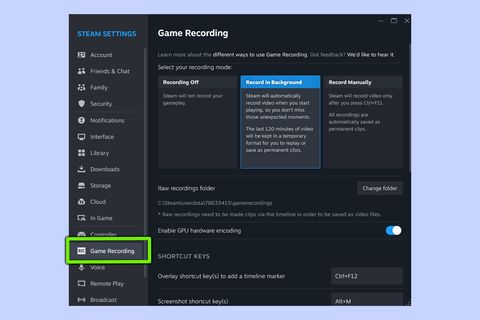
Steam Game Recording Now Available To All Users Niche Gamer Steam Game Recording 11 06 24 1 . How To Record In Steam 5 Solutions For Gamers Record In Steam 02 . Steam Game Recording How To View Recordings YouTube . How To Record Your Steam Games In 2026 Image 2 . How To Record Steam Games Tom S Guide 480 80